Create automatic tasks in Windows 7 using the Task Scheduler
 Windows 7 ships with a built-in "Task Scheduler", which is a piece of software that allows you to automate repetitive tasks with a regularity of your choice: automatically run programs, open a document daily, weekly, or each given date of every month - Task Scheduler can handle all this, is actually extremely easy to use. As you'll learn in this tutorial, less than 2 minutes will let you create a custom task of any kind.
Schedule a task in Windows 7
Follow these steps to create an automatic task to run on your computer:
- Open the start menu, and type "tasks" in the search field.
- When Windows 7 loads the results, click on the "Schedule tasks" link:
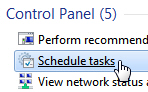
- Windows will open the Task Scheduler; click on the Action menu, and choose "Create Basic Task".
- The Create Basic Task Wizard will launch:
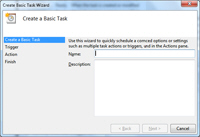
- Start by typing a descriptive Name for your task; you can optionally include a Description.
- Click on the "Next" button.
- The following screen, "Task Trigger", lets you choose what kind of event will make the task run: daily, weekly, monthly, one time, when the computer starts, when you log on, or "When a specific event is logged". For this simple tutorial, let's choose "Daily", to make a task occur every day.
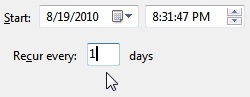
- Click Next, and choose a date and time at which the task will start running: the same hour you pick will be used every day from thereon; choose how many days to skip inside the "Recur every [x] days" text field: "1" day means that the task will automatically run every day, at the time you chose above, starting at the date you picked (which defaults to the current day).
- Click Next, and choose one option in the following screen: "Start A Program", "Send An E-mail", or "Display A Message". We will choose to "start a program".
- Click Next to specify which program to run, and with which arguments (typically, the arguments are going to be a certain file you want to open with the selected program).
- Instead of specifying a program, you can just enter a file name (with full path) inside the "Program/script" text field, and Windows 7 will automatically open it with the default application associated with this file type or protocol: in the case of a web address (URL), this means that Windows 7 will launch it in your default web browser.
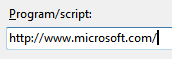
- If you enter a file name, enclose it inside a pair of double quotes if the path contains a space.
- Click on the Next button to finish creating your task, and click on Finish.
- And you have created your first in Windows 7! Once you experiment and become more familiar with the creation and functionality of tasks in Windows 7's Task Scheduler, you will find very little that cannot be automated through scheduled tasks.
- The next step, once you are comfortable with the "Basic Task" wizard, you can choose to use the more advanced task creator instead: click on the Action menu, and choose "Create Task".
Tip: if you want to edit the parameters and triggers of a scheduled task, see where the Task Scheduler stores Windows tasks you have created for more details.
- Windows 7 Tutorial
- Show or hide the clock from the taskbar in Windows 7
- Show or hide the volume icon (sound speaker) from the taskbar in Windows 7
- Mute speakers + Adjust Volume Mixer sound level in Windows 7
- Where is the sound folder in Windows 7? (System sounds "Media" folder location)
- Show or hide icons from the taskbar in Windows 7
- Unpin or pin a program to the taskbar in Windows 7
- Move the taskbar in Windows 7 (to top of screen, sides, or back to bottom)
- Resize the taskbar in Windows 7 (and show date next to time!)
- Hide the date from the taskbar in Windows 7
- Unlock or lock the taskbar in Windows 7: enable or prevent moving / resizing
- Make the Windows 7 taskbar look like Windows XP or Windows Vista
- Change font smoothing anti-aliasing options in Windows 7 (Adjust ClearType text settings)
- Add new users in Windows 7 (Create Windows user account profiles)
- Enable or disable the Guest Account in Windows 7
- Change your password in Windows 7 (Add or remove user account passwords)
- Change your profile picture in Windows 7 (User account image)
- Delete User Accounts in Windows 7 (Permanently remove Windows profiles)
- Login to Windows 7 as a different user (switch user profile without logging off)
- How to quickly lock Windows (Lock your computer in Windows 7)
- What is my user name? Find out your current username in Windows 7
- Change your user name in Windows 7 (Rename your profile)
- Rename my computer in Windows 7
- Check for updates in Windows 7 (Download Windows Updates)
- Uninstall a program in Windows 7 (Delete / remove from your computer)
- Hide or show desktop icons in Windows 7
- Enable or disable "Align to Grid" desktop icons in Windows 7
- Sort your desktop icons by name, size, item type, or date modified
- Enable or disable Auto Arrange desktop icons in Windows 7
- Change the size of desktop icons in Windows 7 + create custom icon dimensions
- Put a shortcut to a program on the desktop in Windows 7
- Change the "My Computer" icon in Windows 7
- Change the "Recycle Bin" icon in Windows 7
- Restore your default desktop icons in Windows 7
- Prevent themes from changing your desktop icons in Windows 7
- Show/hide common desktop icons in Windows 7: Computer/User/Network/Recycle Bin/Control Panel
- What is Aero Peek? Enable or disable Aero Peek in Windows 7
- Enable / Show Quick Launch in Windows 7 Taskbar
- Show menus on the correct side of the screen (right of mouse cursor) in Windows 7
- Change wallpaper (desktop background) in Windows 7: picture or solid color
- Resize / move your desktop wallpaper: Fill, Fit, Stretch, Tile, Center
- Automatically change (rotate) wallpaper desktop background picture in Windows 7
- Find and download free Windows Wallpapers online (Windows 7 / Vista / XP)
- Change your screen resolution in Windows 7
- Enable, change, or disable your screen saver in Windows 7
- Where is the sidebar in Windows 7? Are gadgets gone in Windows7?
- Add gadgets to the desktop in Windows 7
- Download and install new gadgets in Windows 7
- Download the Windows 7 Sidebar to organize your desktop gadgets
- Hide gadgets / show gadgets on the desktop in Windows 7
- Create a folder on the desktop or subfolder inside other folders in Windows 7
- Rename a folder in Windows 7 + Change the name of multiple folders at once
- Use a picture as folder preview file in Windows 7
- Customize, restore, or change the icon of a folder in Windows 7
- Delete a file / folder in Windows 7 + how to restore deleted files / folders
- Restore a previous version of a file in Windows 7
- Select multiple files at once in Windows 7 + Invert selection
- Count the number of files that are in a folder in Windows 7
- How to open a folder in a new window in Windows 7 (manually or automatically)
- How much free space is left on my hard drive? (Disk Usage)
- Share drives, folders and files on the local network in Windows 7
- Change the permissions of a shared file or folder in Windows 7
- Access shared drives, folders, or files on your local network in Windows 7
- Map as drive a shared drive or folder on your local network in Windows 7
- Copy a shared file or folder from the local network to your computer in Windows 7
- Make file transfers faster over the local network (Windows 7 / Vista / XP)
- Error 0x80070035: "The Network Path Was Not Found" message in Windows 7
- "Logon Failure: Unknown User Name or Bad Password" error message in Windows 7
- Add a program to your start menu in Windows 7 (pin programs)
- Remove / hide a program from the start menu in Windows 7 (unpin programs)
- Pin / add a web page (website) to your start menu in Windows 7
- Show or hide recent programs in the Windows 7 start menu
- Make the start menu use large icons or small icons in Windows 7
- Hide or show the "Run" command on the start menu in Windows 7
- Show or hide recent files and documents from the start menu in Windows 7
- Show my pictures on Windows 7 start menu (as button or menu)
- Add a shortcut to the desktop (or other user folders) on the Windows 7 start menu
- Show your IE Favorites on the start menu in Windows 7
- Show the Control Panel as a submenu on the start menu in Windows 7
- Hide or show default programs from the Windows 7 start menu
- Hide or show / add Devices and Printers on the start menu in Windows 7
- Hide or show My Documents on the Windows 7 start menu (open folder button / browse files menu)
- Show your games on the start menu in Windows 7 (as a button or submenu)
- Automatically sort programs by name (alphabetically) in the Windows 7 start menu
- Reset the start menu options in Windows 7 (restore to "Use Default Settings")
- Change what the Power button does in Windows 7
- Run a program as Administrator in Windows 7 (using start menu or right-click shortcut)
- Put a shortcut to a program on the desktop in Windows 7 (using the start menu)
- Change the name of a program on the start menu in Windows 7 (rename shortcuts)
- Make a program start minimized or maximized in Windows 7 (using start menu shortcut properties)
- Customize / change mouse pointer (cursor) scheme / theme in Windows 7
- Use a custom cursor file (*.CUR or *.ANI) for pointer schemes / themes in Windows 7
- Allow or prevent themes from changing your mouse pointers (cursors) scheme in Windows 7
- Show or hide the shadow under the cursor (mouse pointer) in Windows 7
- Make your mouse pointer go faster or slower (Windows 7 cursor speed settings)
- Hide your mouse pointer (cursor) while typing in Windows 7
- Make the cursor (mouse pointer) larger and easier to see in Windows 7
- Animate your mouse cursor movements in Windows 7 ("pointer trails")
- Change the number of lines your mouse wheel scrolls up/down in Windows 7
- Switch / invert the right and left mouse buttons (reverse right-click button) in Windows 7
- Change the double-click speed of your mouse button in Windows 7
- Save a cursor scheme (custom mouse pointers theme) in Windows 7
- Backup or export a custom cursor scheme (mouse pointers theme) in Windows 7
- Transfer / import a custom cursor scheme (mouse pointers theme) in Windows 7
- Rename or delete a cursor scheme in Windows 7 (custom mouse pointers themes)
- Make your cursor automatically move and go to default buttons in Windows 7
- Change cursor blink rate in Windows 7 / Prevent insertion point from blinking
- Make your text insertion point (blinking cursor) thicker or thinner in Windows 7
- Move your cursor (mouse pointer) with the keyboard in Windows 7 ("MouseKeys")
- Where are cursors stored? Location of mouse pointers folder in Windows 7
- Make your mouse scroll automatically through pages / documents (Windows 7 / Vista / XP)
- How to test and preview a cursor (mouse pointer) in Windows 7
- Create automatic tasks in Windows 7 using the Task Scheduler
- Setup a reminder in Windows 7 (one-time notification or recurring alert)
- Where are the Windows tasks you have created in Task Scheduler? (Windows 7)
- Permanently delete or temporarily disable a scheduled task in Windows 7
- Backup / export and import tasks from the Task Scheduler in Windows 7

